Each card in a course can contain a mix of text, media, quizzes, and interactive elements. Add elements inside an existing card, or create a new card to showcase a single element on its own.

1. Select anywhere in the card and press Enter.
2. Select the element you want to insert from the menu that appears.
3. Drag the element by its handle to reorder items within the card.
The insert menu groups elements by type:
• Text: Title, Heading, Small Heading, Bullet List, Numbered List, Check list, Quote, Code
• Media: Image, Image with Markers, Video, Youtube, Vimeo, Audio, Spotify
• Quiz: Multiple-choice, Open answer, True or False, Rank, Sorting, Matching
• Interactive: Button, Flip cards, Carousel, Chart, Website Embed, Embed HTML
• Section: Table, Columns, Grid, Steps, Timeline, Alternating, Cycle, Callout, Details, Divider
To showcase one element, such as a full-width image or video, create a dedicated card with a single-column layout.
1. In the sidebar, select New above the course navigation.
2. Select Card.
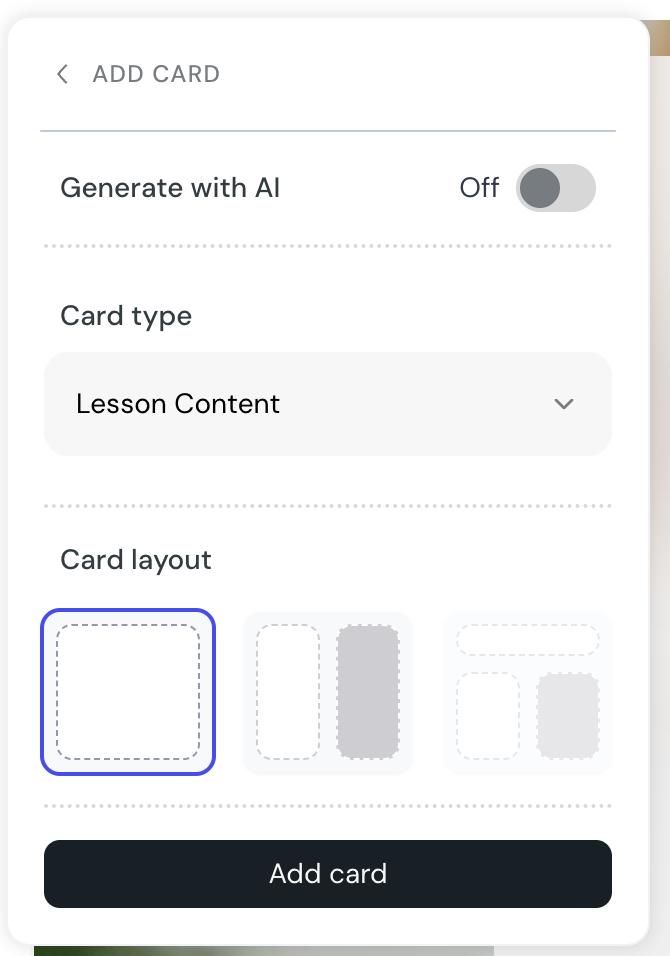
3. Switch off Generate with AI.
4. From Card type, select Lesson Content.
5. From Card layout, select Single Column.
6. Select Add card.
7. Select inside the new card, press Enter, and choose your element from the insert menu.
Learners can open any course image in a fullscreen lightbox while taking the course or while previewing it.
To open the lightbox:
• select the image with the mouse
• focus the image with the keyboard, then press Enter or Space
To close the lightbox:
• press Esc
• select the close button
• select the backdrop outside the image
The lightbox traps focus inside the dialog, returns focus to the image when it closes, and announces the image's alt text to screen readers. It also respects the operating system's Reduce motion setting.
Image guide
Courseau offers a powerful AI image generation feature that allows you to create custom visuals for your courses without external tools.
Editor elements
This guide provides an overview of all interactive components available in the Courseau editor, along with examples of how they can be used to enhance your courses.
