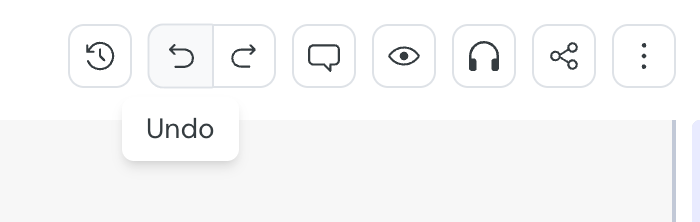
Courseau gives you three ways to roll back a change in a lesson: undo a recent edit, restore a lesson you deleted by mistake, or revert to a saved version of a lesson with View history. The right option depends on the type of change you want to undo.
Use Undo to reverse your most recent edits in the lesson editor.
1. Open the lesson you want to edit.
2. In the editor toolbar, select Undo.
3. To reverse an undo, select Redo.
You can also use keyboard shortcuts:
• press Cmd+Z (Mac) or Ctrl+Z (Windows) to undo
• press Cmd+Shift+Z (Mac) or Ctrl+Shift+Z (Windows) to redo
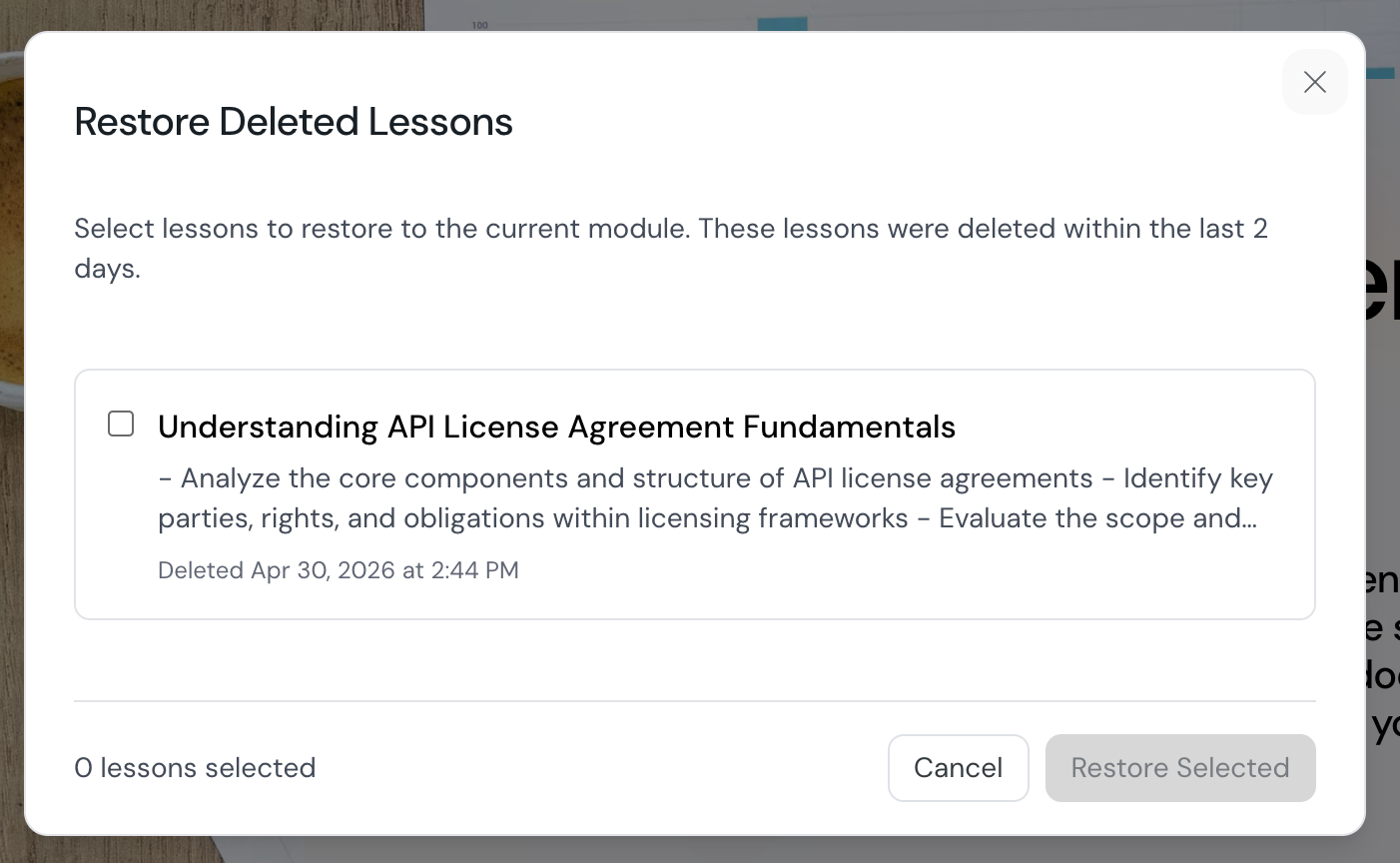
If you delete a lesson by mistake, you can recover it within 2 days.
1. Open the course that contained the lesson.
2. In the editor toolbar, select the More settings menu (the three dots icon).
3. Select Restore deleted lessons.
4. In the Restore Deleted Lessons dialog, select the lessons you want to recover.
5. Select Restore Selected.
The selected lessons return to the current module.

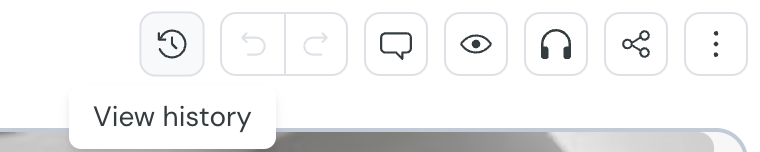
View history shows saved versions of a lesson. From the History panel you can preview a version, restore the whole lesson to that version, or restore a single card from a past version.
1. Open the lesson you want to review.
2. In the editor toolbar, select View history (the counter-clockwise clock icon).
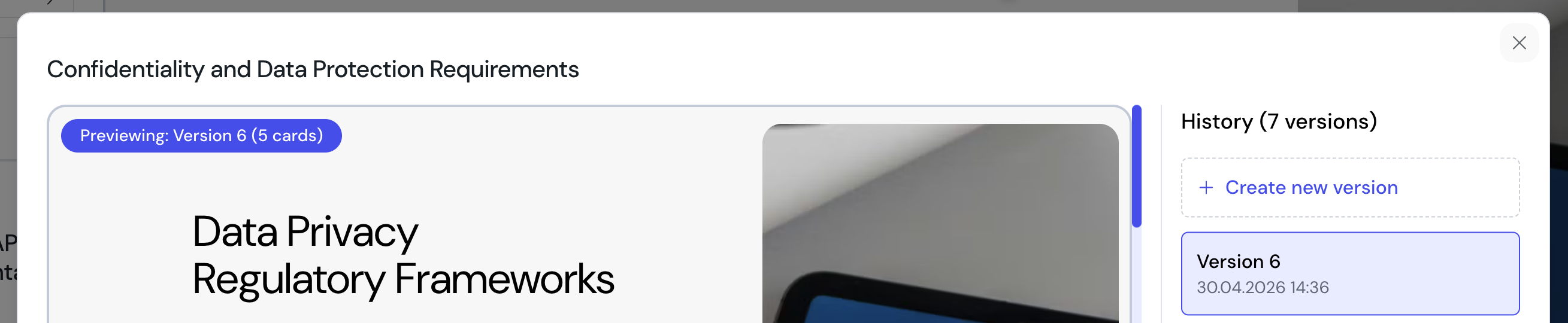
The History panel opens to the side of the editor and lists each saved version, with the most recent at the top. The main pane shows a read-only preview of the version you select.
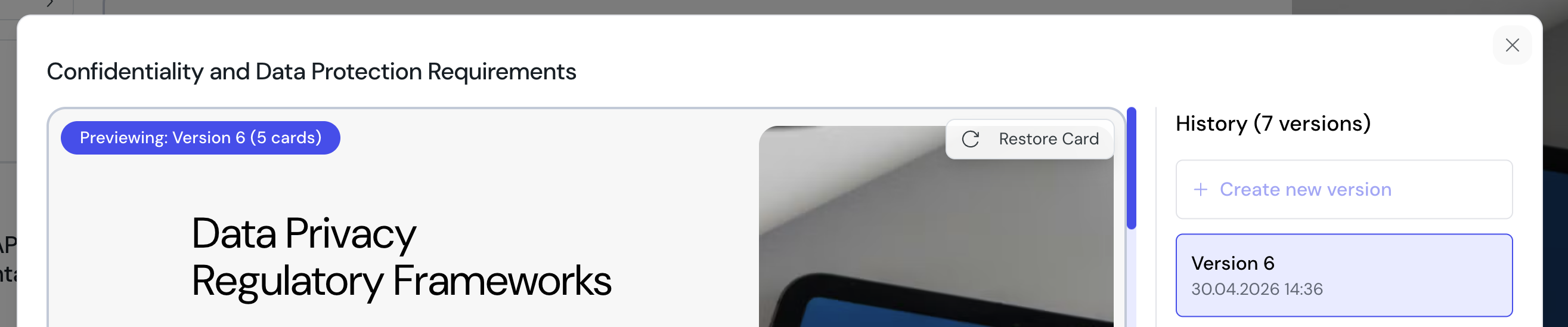
In the History panel, select a version. The preview pane shows the lesson as it was at that point in time. A label at the top of the preview reads Previewing: [version name].
Save a named version to mark a known-good state before making bigger changes.
1. Make the changes you want to save.
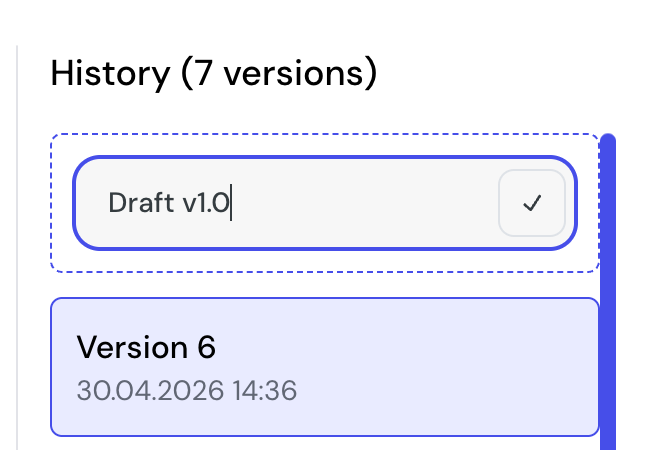
2. In the History panel, select Create new version.
3. In the Enter version name field, enter a name for the version.
4. Press Enter, or select the checkmark, to save.
The version appears at the top of the History list.
Restoring replaces the contents of the lesson with the contents of the version you select. Courseau saves your current state as a backup version first, so you can roll the restore back if needed.
1. In the History panel, hover over the version you want to restore.
2. Select the restore icon next to the version name.
The editor loads the restored content. A new version named Unsaved changes before revert to [version name] is added to the History list.
If you only want one card from a past version, you can restore it without changing the rest of the lesson.
1. In the History panel, select the version that contains the card you want.
2. In the preview pane, hover over the card.
3. Select Restore Card in the corner of the card.
If the card still exists in the current lesson, the restore replaces it. If you deleted the card, the restore inserts it back in its previous position.
A toast confirms the result: Card restored successfully or Deleted card restored successfully.