
 Add a custom theme
 Select Design from the course settings dropdown.
Click select a theme and then create new.
Name your theme so that your team can easily find it.
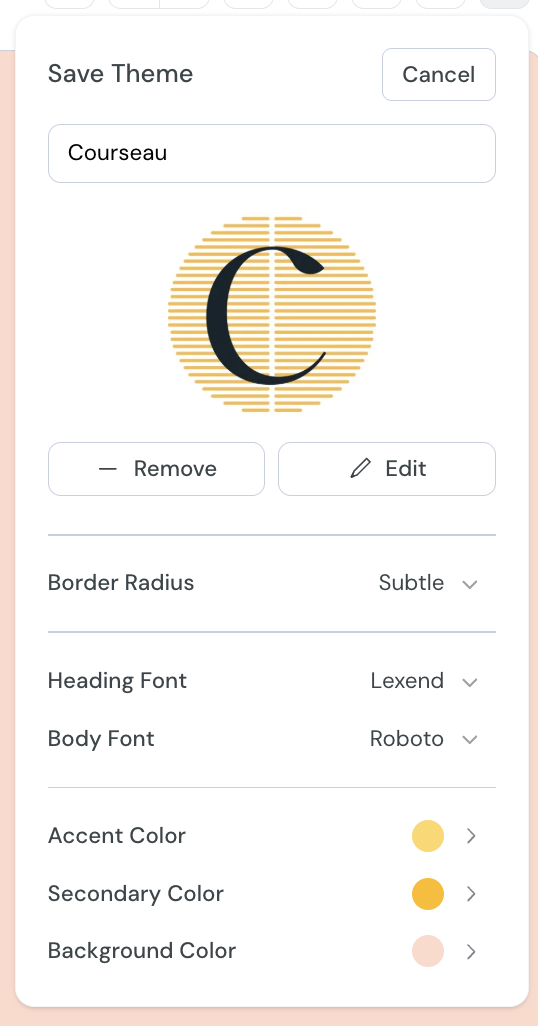
You can update settings for this theme:
Add a logo that appears on the course cover page with an editable alt-text field to ensure that the image remains accessible for all learners.
Border radius: Show borders rounded, soft or with sharp corners.
Heading & Body font: Choose separate fonts for your headers and body text.
Accent color: Choose the colour used for elements such as buttons and tags.
Secondary color: Choose the colour used for elements such as the background for flipcards.
Background color: Choose the colour that appears behind your course content.
A preview of the theme will show in the course editor as you change settings.
Once you are happy save the theme.
You can:
Add multiple custom themes to cater to your various use cases.
Preview themes before applying them to your course.
Create duplicates and variants of your themes.
Example theme creation screen
Frequently Asked Questions (FAQs)
What happens when I delete a theme?
The theme will be removed from your theme list however any courses that were using the theme will remain intact and no longer be linked to the now deleted theme.
