A sorting quiz asks learners to drag items into the correct categories. Use sorting quizzes to test whether learners can classify or group concepts from your course.

Sorting quizzes work in both lessons and exams. There are no limits on the number of categories or items you can add.
Sorting quizzes display two areas:
an unassigned items pool, where all items start
category drop zones, where learners drag items to sort them
The order of items and categories is shuffled each time a learner opens the quiz. This prevents learners from memorizing positions.
Scoring is all or nothing. Every item must be in its correct category to pass. If any item is in the wrong category, or left unassigned, the quiz is marked as incorrect.
If you add an explanation, it displays after submission. Learners who answer correctly see the explanation in a green box. Learners who answer incorrectly see it in a red box, with the option to try again.
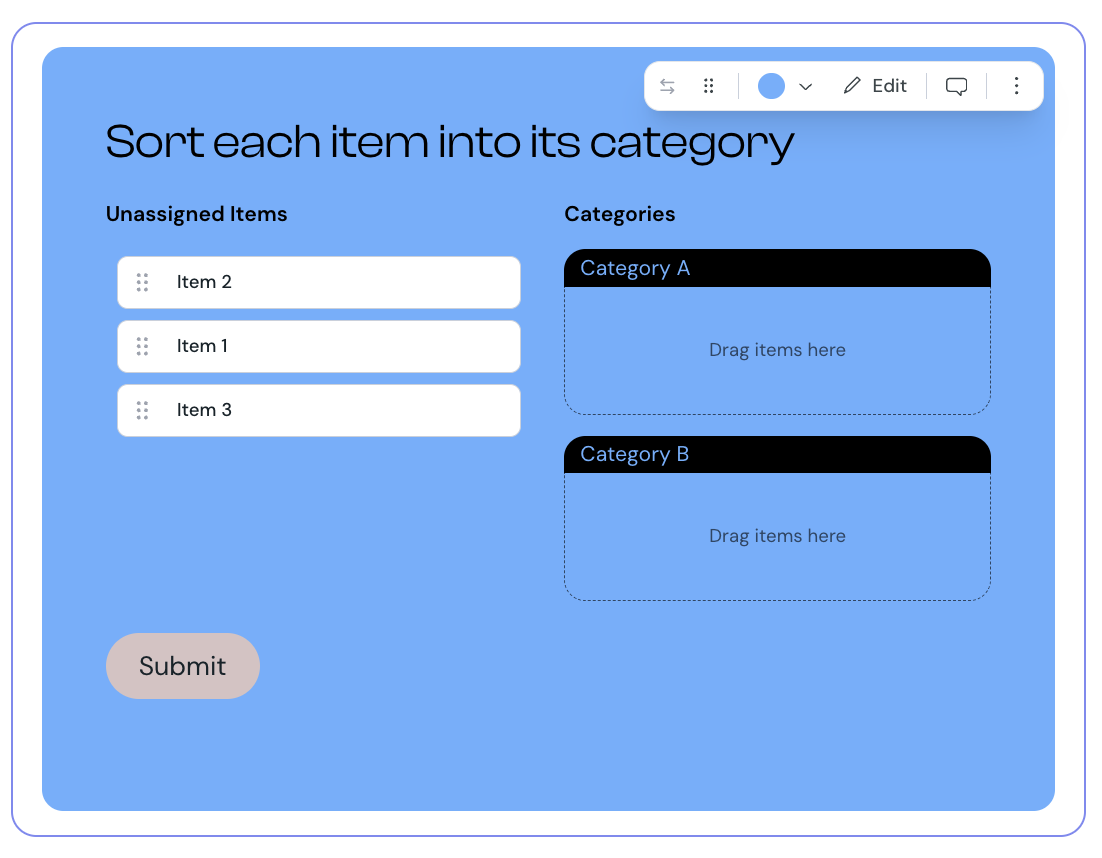
1. Select Sorting from the element list to add it to your lesson.
2. Hover over the sorting component and select Edit.
3. Enter your question in the question field. You can use rich text formatting.
4. Optionally, add instruction text to guide learners on how to complete the quiz.
5. Enter a name for your first category.
6. Select Add item and enter the text for each item. Assign each item to its correct category.
7. To add more categories, select Add Category from the inline menu.
8. Repeat steps 5 and 6 for each additional category.
9. Optionally, add an explanation to display after learners submit their answers.
10. Select Preview to check how the quiz appears to learners.
You can change the background color of the sorting quiz to match your course design.
1. Select the sorting quiz component in the editor.
2. Use the color picker to select a new color.
The color applies to category headers and the overall quiz background. Courseau adjusts text color automatically to maintain readable contrast.
Sorting is one of the question types you can include when you create an exam. When used in an exam:
learners' answers save automatically as they drag items between categories
feedback and explanations display only after the exam is finished
each sorting question is worth 1 point if every item is in the correct category, and 0 points otherwise
learners cannot change their answers after the exam is complete
The exam score is calculated as a percentage of correctly answered questions. The pass or fail result depends on the minimum score set for the exam.
Use clear, distinct category names that do not overlap in meaning
Aim for two to four categories. Too many categories make the quiz hard to scan
Keep item text short so learners can read items while dragging
Include items from each category in roughly equal numbers
Test the quiz in preview mode to confirm every item is assigned to the right category before publishing
