Every exam has two settings that control what counts as a pass and whether learners can move past the exam without one. You can change these settings any time, on any exam.

1. Open the exam in the editor.
2. Select the settings icon on the exam's toolbar.
3. The settings panel opens with the two controls below.
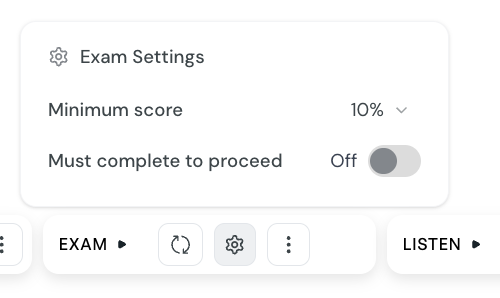
The Minimum score is the percentage a learner must reach to pass the exam. You can choose between 0% and 100% in 10% increments. The default is 60%.
The score is the percentage of questions the learner got right. Each question scores 1 point if every part of the answer is correct, and 0 points otherwise.
Imagine a 5-question exam with the minimum score set to 60%. To pass, a learner needs at least 3 of the 5 questions correct, which equals 60%.
3 of 5 correct: 60% — pass
4 of 5 correct: 80% — pass
2 of 5 correct: 40% — fail
The Must complete to proceed toggle decides whether the exam gates the rest of the course. It is on by default.
When the toggle is on:
learners cannot open the next lesson until they pass the exam
the fail screen prompts learners to try again
the exam status counts toward course completion
When the toggle is off:
learners can move to the next lesson regardless of their score
learners can even skip the exam entirely
the fail screen tells learners the exam is not required
Required exam, strict threshold (must complete on, minimum score 70-100%): use for high-stakes assessments where mastery matters
Required exam, balanced threshold (must complete on, minimum score 50-70%): default behavior, suitable for most end-of-module exams
Optional exam (must complete off): use for self-check quizzes where learners benefit from trying but should not be blocked
Create an exam
Add a new exam to a course, choose what it covers, pick the question types, and let Courseau generate the questions for you.
SCORM Completion & Scoring
This guide explains how course completion works when your Courseau course is exported as a SCORM package and imported into a Learning Management System (LMS).
