Learner profile presets let you save a description of your audience and reuse it across courses. Presets are shared with everyone in your workspace, so your team can build courses against the same learner definitions.

You can save a preset directly from the course creation flow, or manage your full set of presets from inside an existing course.
Save a preset when you have written a description you want to keep for future courses.
1. From the course creation flow, go to the step titled Let's define your learner.
2. Pick a suggested profile, or enter your own description in the learner profile field.
3. Once the field has content, select Save Learner Profile Preset under the field.
4. In the dialog that opens, enter a name in the Preset name field.
5. Select Save.

When your workspace has at least one saved profile, a dropdown appears at the top of the Let's define your learner step.
1. From the course creation flow, go to the Let's define your learner step.
2. Open the Select a saved profile dropdown.
3. Select the preset you want to use.
Courseau fills in the learner profile field with the preset's description. You can edit the description before continuing — your edits apply to the current course only and do not change the saved preset.
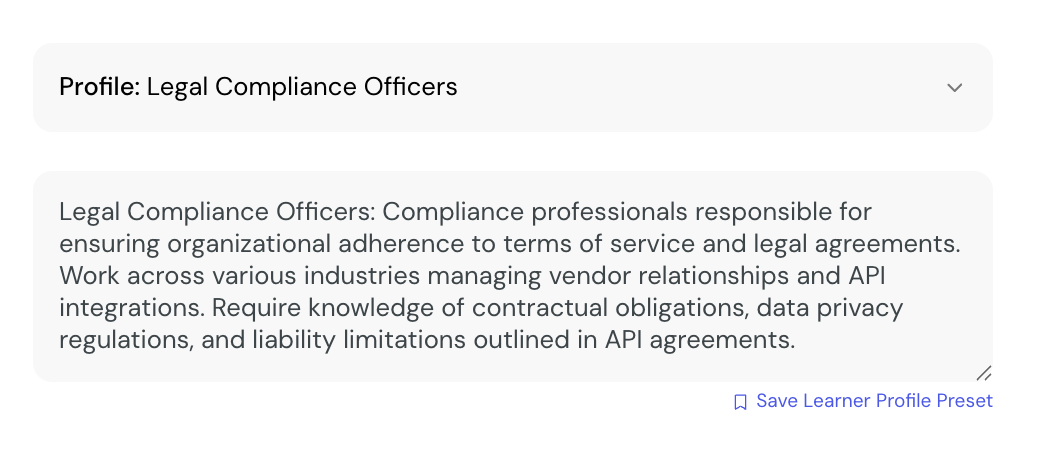
Open the management dialog from inside an existing course to review, rename, or remove presets.
1. From the project's three-dot menu, select Course parameters.
2. In the dialog that opens, go to the Learner profiles section.
3. Select Manage Learner Profile Presets.
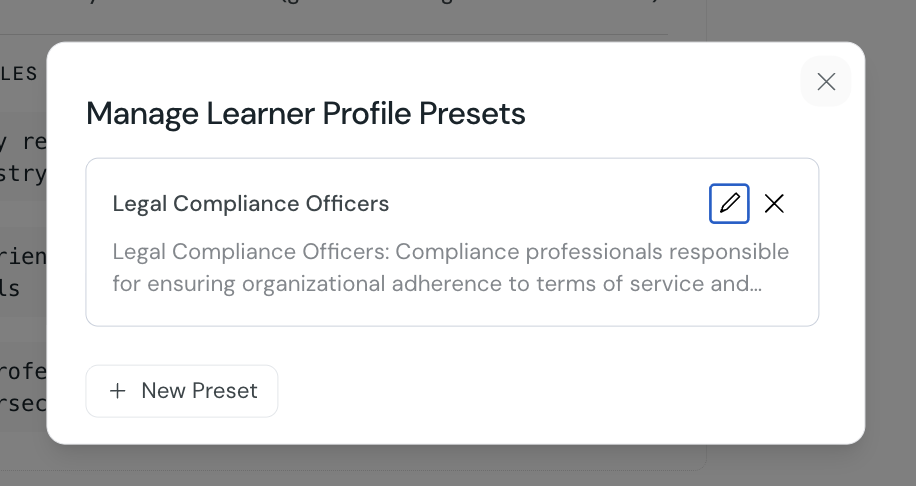
The dialog lists every learner profile preset saved in your workspace. If your workspace has none, the dialog shows the message "No saved presets yet."
1. From the Manage Learner Profile Presets dialog, select + New Preset.
2. Enter a name in the Preset name field.
3. Enter the audience description in the field below.
4. Select Save.
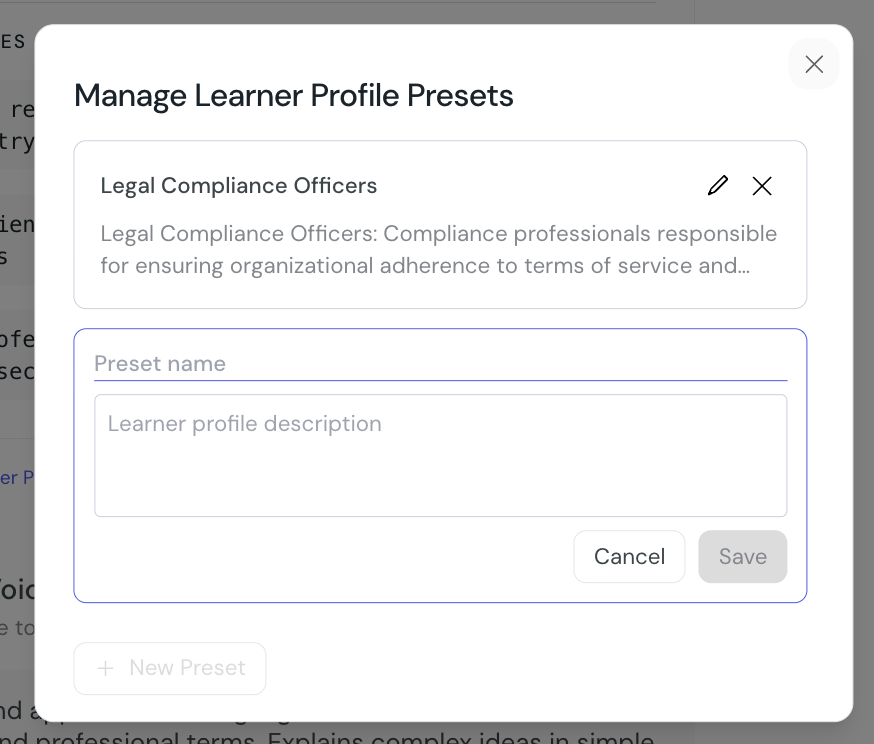
The new preset appears in the list and is available in every course in your workspace.
1. From the Manage Learner Profile Presets dialog, find the preset you want to change.
2. Select the pencil icon on the row.
3. Update the name, description, or both.
4. Select the check icon to save your changes.
1. From the Manage Learner Profile Presets dialog, find the preset you want to remove.
2. Select the X icon on the row.
3. Select Delete to confirm, or Cancel to keep the preset.

Tone of voice presets
Tone of voice presets let you define how Courseau generates course content. You save a preset once, then apply it to any course in your organization.
Creating a course
A guide on the various ways to create a course, editing, and regeneration.
