
The color picker and font picker in the editor share the same layout. Each one groups options into four sections, in this order:
Theme: colors or fonts defined in your brand theme. Apply these to keep your course on-brand.
Recent: colors or fonts already in use elsewhere in the current lesson. Pick from this section to reuse a non-theme value without scrolling the full palette or copying a hex code.
Pick a color: enter a custom hex color, or select a custom font you have added to the project.
Standard: the built-in color palette and the built-in font library.
Recent values are deduped against Theme, so a color or font that already exists in your theme does not appear under Recent.
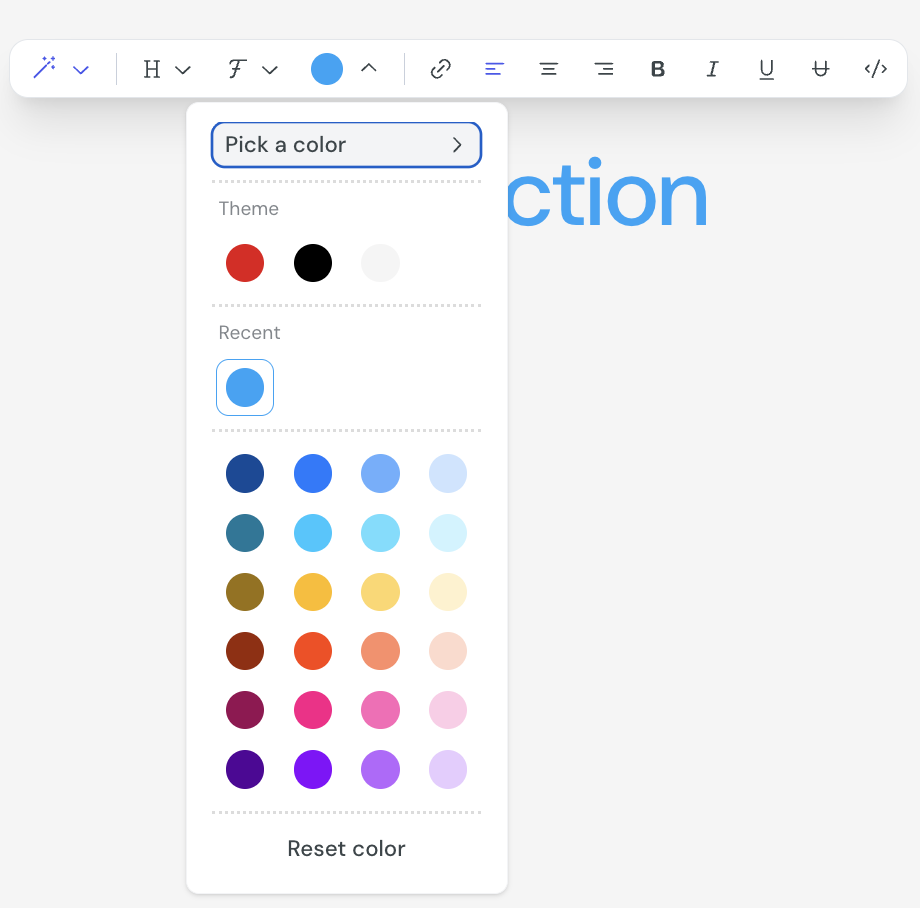
Courseau scans the lesson plan and surfaces every color and font that is currently in use. When you pick a value that is not in your theme, that value appears under Recent in every other picker in the same lesson.
the scope is the lesson plan, so values used in any module, lesson, or card in the same course feed the Recent section
values appear in Recent automatically once they are applied somewhere in the lesson
Recent currently supports hex color codes only
if you remove the last usage of a value, it stops appearing in Recent
You can change the color of text, card backgrounds, layout sections, quiz components, callouts, buttons, and charts. The picker opens from the relevant toolbar or floating menu.
1. Select the element you want to change.
2. Open the color picker from the toolbar or floating menu next to the element.
3. Pick a value from Theme, Recent, or Standard, or open Custom and enter a hex code (for example, #1A73E8) or pick a value from the color wheel.
4. Close the picker to apply the change.
You can change the font of any rich text content from the editor toolbar.
1. Select the text you want to change.
2. From the formatting toolbar, open Select a font.
3. Pick a font from Theme, Recent, or Standard. The Standard section groups fonts by category, including sans-serif, serif, and mono.
4. Close the picker to apply the change.
The color picker shows up wherever an element can be tinted, including:
text color and highlight in the text formatting toolbar
card background, from the card floating menu
section and column background, from layout block menus
button color
callout color
quiz appearance, on multiple-choice, matching, ranking, sorting, true-or-false, and open-answer quizzes
chart data series colors
The font picker shows up in the text formatting toolbar whenever a text block is selected.
apply theme values where you can, so your course stays on-brand and updates automatically when your theme changes
use Recent to reuse one-off values across a lesson without storing them in the theme
save values you want to reuse across courses to your brand theme rather than relying on Recent, because Recent is scoped to a single lesson
Custom Themes
Create reusable brand themes that define your course colors, fonts, logo, and corner styles.
Setup: create your brand theme before your first course
Extract a starting theme from your company website, pick a preset, or build a theme from scratch before you create your first course.
