Once an exam exists you can change any question by hand, or regenerate the entire exam with different options. Pick the approach that matches the size of the change you need.

Use direct editing for small changes: a clearer wording, a different correct answer, or a better explanation.
1. Open the exam in the editor.
2. Hover over the question you want to change and select Edit.
3. Update the question text, answers, correct answer, or explanation as needed. The fields you see depend on the question type.
4. Select Preview to confirm the question reads well and the right answer is correct.
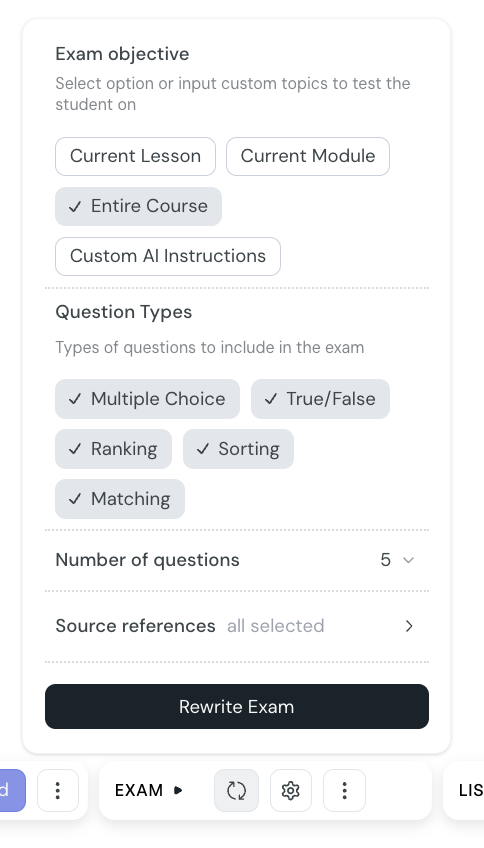
Use Rewrite Exam when you want to start over with new options: a different objective, a different mix of question types, more or fewer questions, or different source documents.
1. Open the exam in the editor.
2. Select Rewrite Exam from the exam toolbar.
3. Adjust any of the following:
Exam objective — Current Lesson, Current Module, Entire Course, or Custom AI instructions
Question types — any combination of Multiple Choice, True or False, Ranking, Sorting, and Matching
Number of questions — 1 to 15
Source references — all sources, or a subset
4. Select Rewrite. Courseau replaces the existing questions with a new set generated from your updated options.
Edit individual questions when you like the overall set and just want to fix or polish a few items
Edit individual questions if you want to change scoring of one question without affecting the rest
Rewrite the exam when the overall direction is wrong: the wrong scope, the wrong style of questions, or the wrong source material
Rewrite the exam after large changes to the underlying lessons. The new questions will reflect the latest content
Create an exam
Add a new exam to a course, choose what it covers, pick the question types, and let Courseau generate the questions for you.
Exam settings: minimum score and progression
Set the minimum passing score for an exam and decide whether learners must pass before moving on to the next lesson.
