
On large screens, Alternating places a vertical line down the center of the block. Numbered badges sit on the line, and each item's content appears to the left or right in turn. The result is a zig-zag rhythm that draws the eye down the page.
On narrow screens, the layout shifts to a single column. The line moves to the left edge and all content sits to the right, so the sequence stays readable on small devices.
Alternating works well for:
• a story arc or narrative sequence
• a learning journey with distinct phases
• before-and-after or problem-and-solution pairs
• milestones where visual variety helps engagement
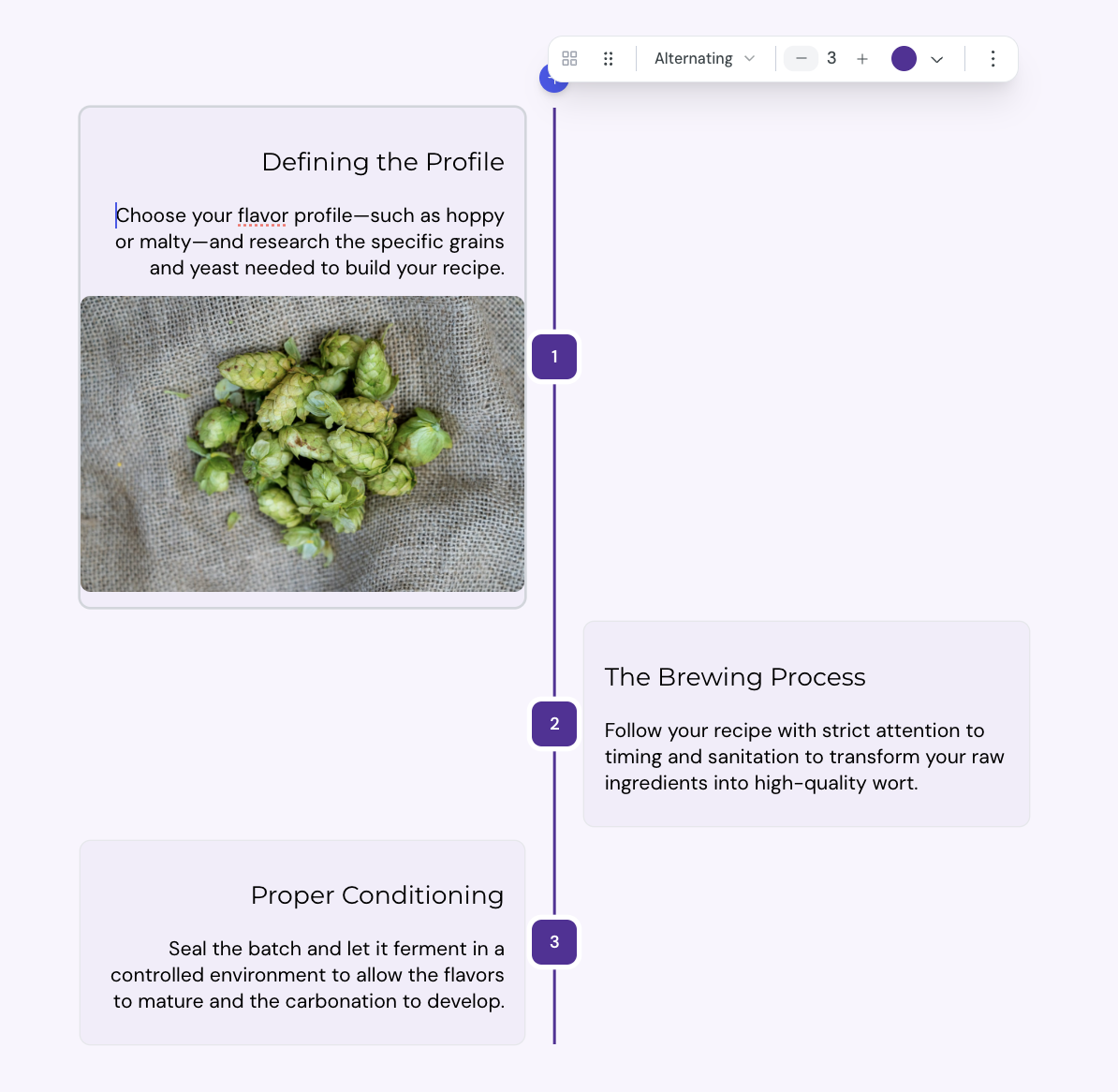
All three layouts show numbered, ordered items. The difference is shape:
• Alternating: vertical on large screens with a center line, and content that alternates left and right for visual rhythm
• Timeline: horizontal on large screens with a line across the top, best for showing progression across time
• Steps: vertical at all screen sizes with large left-side badges, best for a direct walkthrough of a process
You can add an Alternating block anywhere in a lesson card.
1. Open the lesson in the lesson editor.
2. Place the cursor on an empty line inside a card.
3. Type / to open the insert menu, then select Alternating.
The editor adds an Alternating block with 2 items. Each item starts with a placeholder heading and description.
Each item accepts any kind of block content. You can add:
• headings and paragraphs
• images, videos, and other media
• code blocks
• nested layout blocks
To edit an item, select inside the content area and type or paste your content.
An Alternating block supports 2 to 10 items.
1. Select the Alternating block.
2. In the toolbar, find the cell counter.
3. Select + to add an item at the end, or − to remove the last item.
Courseau renumbers the items and keeps the left-right alternation correct as you add or remove items.

The toolbar above a selected Alternating block offers more controls.
• Layout type: switch between Grid, Steps, Timeline, Alternating, and Cycle
• Color: set a color for all badges in the block
• Constrain width: limit the block to 800 pixels wide, or switch to Full width to fill the page
Layout & columns
Configure the column layout of your card
Layout block width
The Constrain width option controls how wide a layout block spans on the lesson page. You can set the width for each block, so different layouts in the same lesson can use different widths.
