Quiz elements are the same question types that power exams: multiple choice, true or false, ranking, sorting, matching, and open answer. You can use any of them inside a regular content lesson as a small interactive check, without setting up a full exam.

Use quiz elements inside lessons for low-stakes interactions that reinforce what you just taught:
knowledge checks right after a key concept
engagement breaks to keep a long lesson interactive
reflection prompts using the open answer element
practice questions before a learner reaches a real exam
1. Open the lesson where you want to add the element.
2. Place the cursor where you want the element to appear, or open the element menu inside an existing card.
3. Select the element you want from the list: Quiz (multiple choice), True or False, Ranking, Sorting, Matching, or Open Answer.
4. Configure the element the same way as for an exam. The setup steps are the same; see the per-element article linked at the bottom of this page for details.
5. Select Preview to check how the element appears to learners.
Two settings on the lesson itself control how quiz elements affect a learner's progress through the course. Both are set on the lesson, not on individual quiz elements.
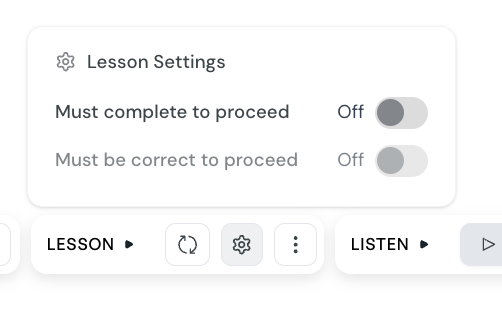
When Must complete to proceed is on, learners cannot open the next lesson until every quiz element in the current lesson has been answered. When off, learners can skip past unfinished elements and move on.
When Must be correct to proceed is on, the lesson is marked passed only if every quiz answer in the lesson is correct. If any answer is wrong, the lesson is marked failed instead of completed. This prevents learners from progressing without demonstrating mastery.
When off, completing the quiz elements is enough, regardless of whether the answers are right. The lesson is marked completed when all elements are answered, even if some answers were wrong.
Must complete on, must be correct off (default): learners must finish every quiz element but can move on with wrong answers
Must complete on, must be correct on: learners must finish every quiz element AND get every answer right to pass the lesson
Must complete off: the lesson is optional; learners can skip past unanswered elements
Quiz elements inside lessons behave differently from the same elements inside an exam:
learners submit each element individually and see feedback immediately
correct and incorrect answers are highlighted right after submission
the explanation you set up is shown straight away
there is no minimum score or pass or fail screen at the lesson level
learners can try again on a single element if they got it wrong
Place the element immediately after the content it relates to, while the idea is fresh
Mix element types across a lesson to keep learners engaged
Use one element per concept rather than a row of similar questions. A single well-placed check beats five repetitive ones
If you want a true assessment, use an exam lesson instead. Quiz elements in lessons do not contribute to a pass or fail result
Multiple choice questions
Add multiple choice quizzes to a lesson or exam to test learners on a single correct answer or several correct answers from a list of options.
True or false questions
Add true or false quizzes to a lesson or exam to check whether learners can judge if a statement is correct.
Ranking questions
Add ranking quizzes to a lesson or exam to test whether learners can place items in the correct order.
Sorting questions
Add sorting quizzes to a lesson or exam to test whether learners can group items into the correct categories.
Matching questions
Add matching quizzes to a lesson or exam to test whether learners can pair related items, such as terms with definitions.
Open answer elements
Add an open answer element to a lesson to collect free-text responses from learners. Open answers are not scored and are not available in exams.
SCORM Completion & Scoring
This guide explains how course completion works when your Courseau course is exported as a SCORM package and imported into a Learning Management System (LMS).
Add media, quizzes, and interactive elements to a card
How to add interactive lesson elements to a card.
